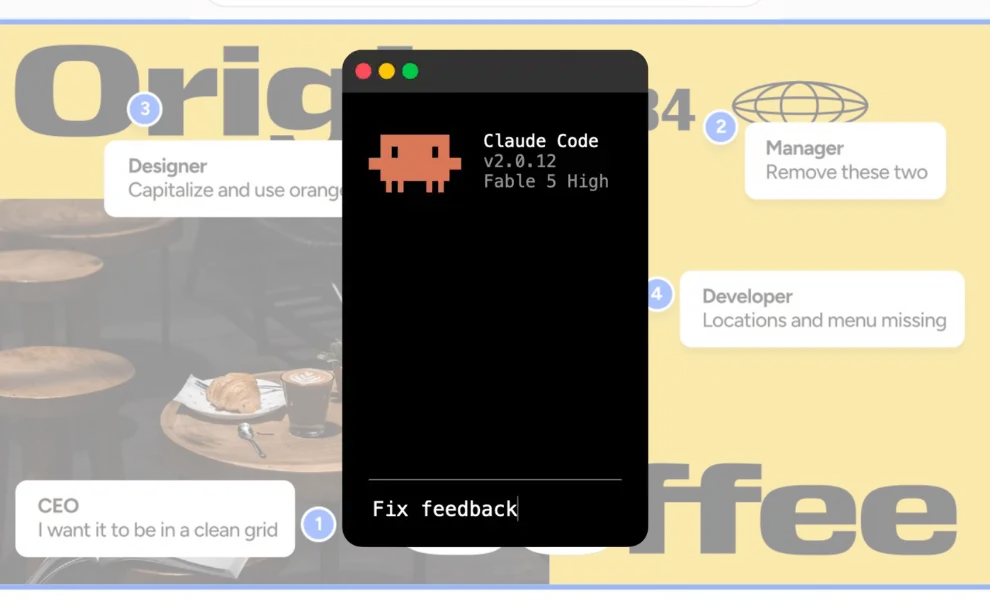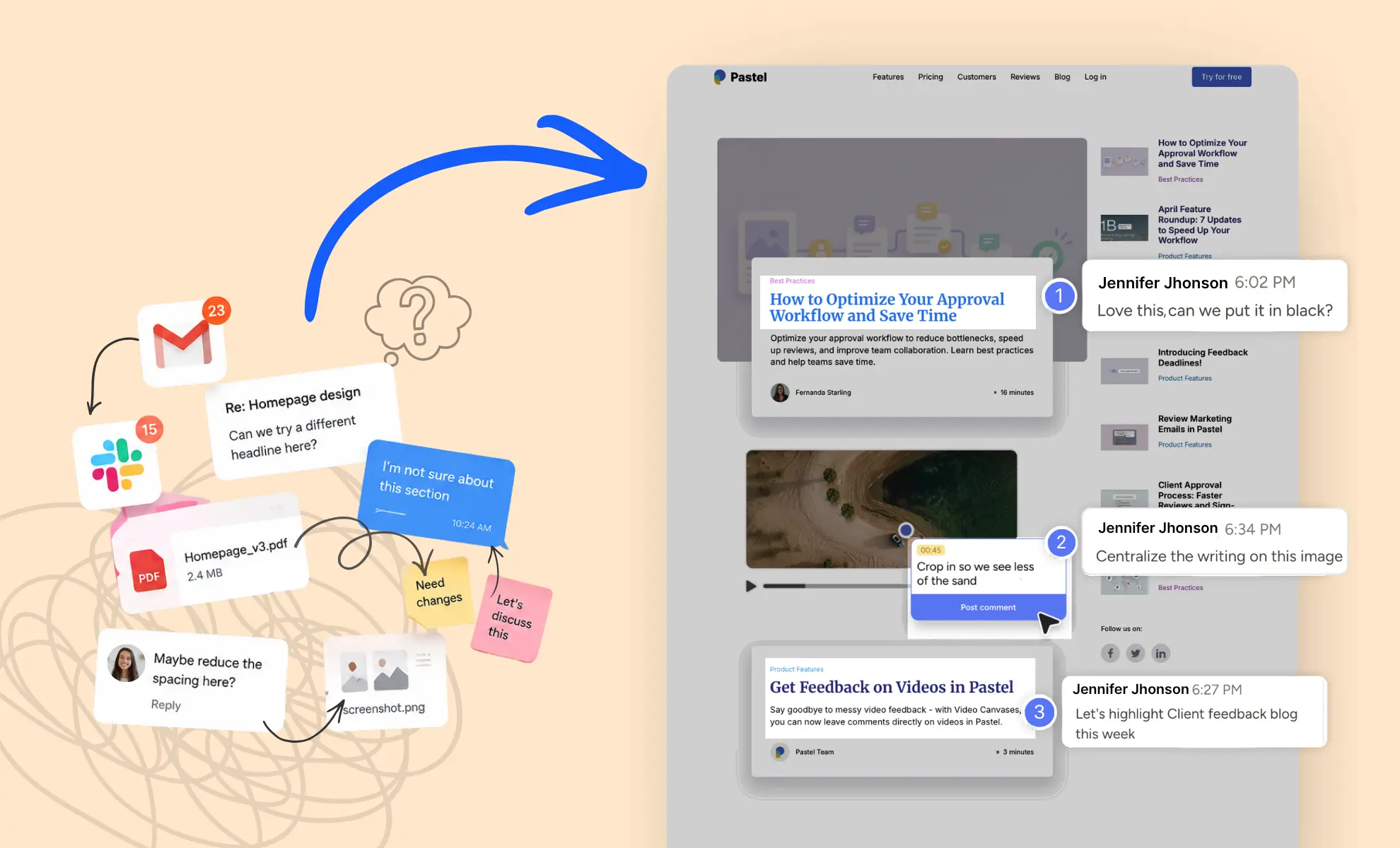


Your AI agent can now do a lot more inside Pastel, and this November feature roundup shows you how. Over the past few months, we shipped several updates that connect client feedback to the tools you build with.
We’ve added a few more, so you can now send any comment to any agent and catch up on new activity faster. You can also clean up your dashboard in seconds with the multi-select option.
Below, you will find what changed and how to use it today.
What's new for your AI agent in the November feature roundup
Here is the short version before we get into the details:
- Pastel for AI Agents: a recap of the MCP server, HTML uploads, and the new Pastel CLI.
- Copy as Prompt: copy any comment, with all its context, into your AI agent.
- Improved notifications and activity feed: a New Activity tab, read and unread status, and a history on every comment.
- Bulk actions on the dashboard: move, archive, or delete many canvases at once.
In case you are new here, a canvas is any website, design, PDF, video, or email you upload for review. Missed our last release notes? Then the August Feature Roundup: 5 Updates for Faster Client Reviews is still worth a read.
Pastel for AI agents: a quick recap of what's live

If you build websites with Claude Code, Cursor, Codex, or ChatGPT, your review process just got shorter. Since the summer, we have shipped three updates for AI agents. Each one solves a different part of the feedback loop, so here is how they fit together.
Pastel MCP server: let your AI agent fix client feedback
MCP stands for Model Context Protocol. It is an open standard that lets AI tools connect to outside apps and data in a consistent way. If you are curious, you can read more about the open standard behind it.
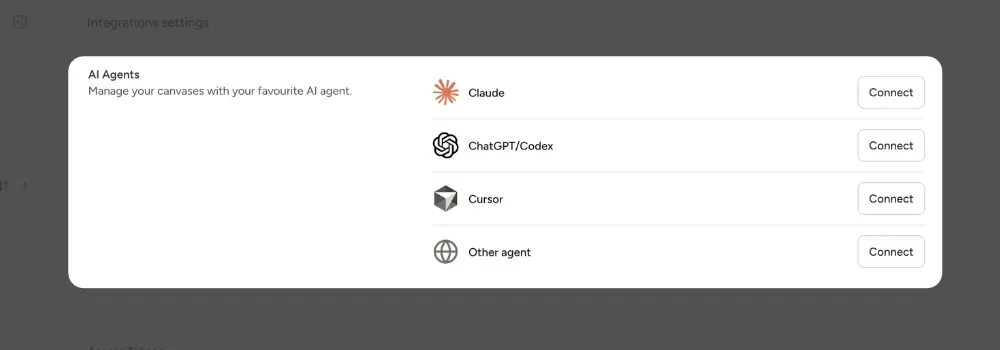
In Pastel, the MCP server is the bridge between your review canvas and your AI agent. First, you connect your agent to Pastel. Then you paste a canvas link and ask it to fix the open comments.
After that, your agent reads each comment along with its page, element, and screenshot. Finally, it makes the change, replies with what it did, and resolves the comment. In other words, you no longer need to copy and paste feedback between tabs.
It works with Claude, Claude Code, Cursor, ChatGPT, Codex, and any other agent that supports MCP. For a full walkthrough, read One prompt to fix client feedback with Pastel for AI agents. You can also learn more in our help center.
Upload HTML files straight from your AI agent
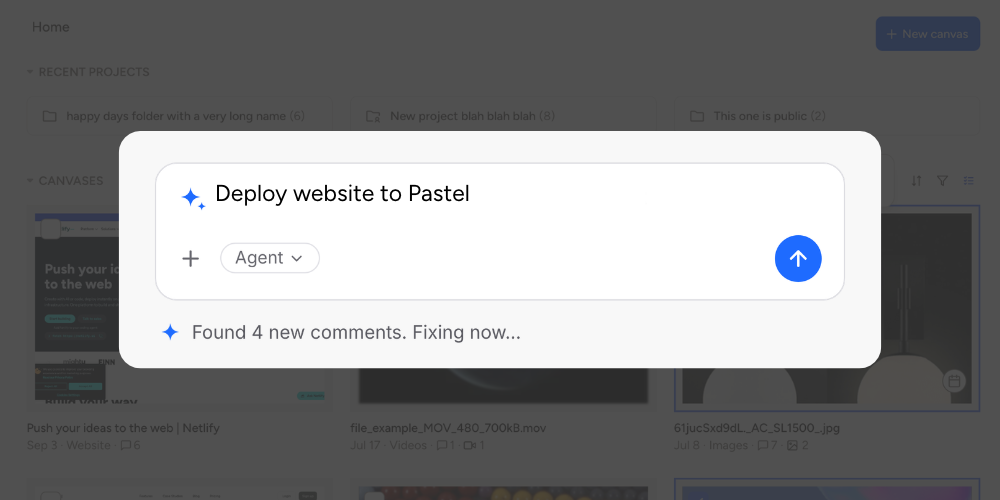
HTML (HyperText Markup Language) is the code that structures every web page. Anything your agent builds in HTML usually stays on your laptop until you host it somewhere. However, setting up hosting just to ask a client for feedback on a draft takes time.
Now your agent can upload it directly to Pastel instead. Just tell it "Deploy to Pastel" and it turns your HTML into a canvas you can share. That means no hosting, no staging URL, and no waiting on a deploy.
Then your client or team leaves comments. Once they are done, tell your agent "Check all open Pastel comments and fix." It reads the feedback, makes the changes, and replies to each comment. Plus, it deploys the new version to the same canvas, so everyone stays on one link.
As a result, landing pages, slide decks, proposals, and prototypes can all live on Pastel now. Learn more about HTML uploads.
Pastel CLI or MCP server: how to connect your AI agent
CLI stands for command line interface. In other words, your agent runs Pastel commands directly from your terminal. Both options give you the same feedback loop. So the right choice depends on where your agent runs:
Either way, setup only takes a couple of minutes. Learn more about the Pastel CLI.
Copy as Prompt: send any comment to an AI agent
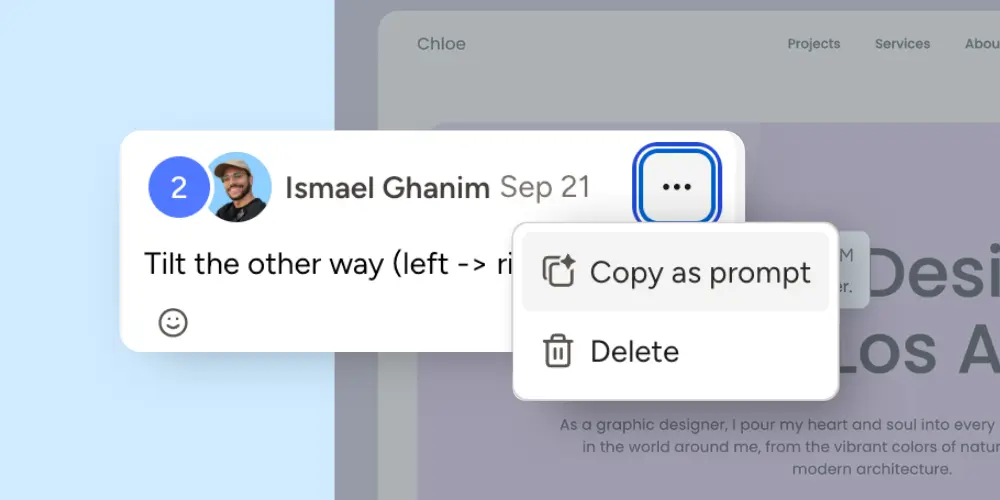
Not every agent is connected through MCP or the CLI. For example, you might be testing a new tool or fixing just one comment. That is exactly where Copy as Prompt helps.
Every comment in Pastel now has a Copy as prompt option. It turns the comment into a ready-made prompt, which is the instruction you give an AI tool. Then you paste it into any agent and let it get to work.
What a copied prompt gives your AI agent
On its own, a comment rarely gives an agent enough to act on. For instance, "make this bigger" means nothing if the agent cannot see what "this" is. So the copied prompt includes everything attached to the comment:
- The comment text, word for word.
- The screenshot and pin location, so your agent knows which element it refers to.
- The web address of the page.
- Any attachments on the comment.
- Clear instructions on what your agent should do next.
As a result, your agent gets rich context with zero setup. That way, it spends less time guessing and more time acting on the issue.
Where to find Copy as Prompt?
Click the More actions (•••) button at the top right of any comment. Copy as prompt sits in the dropdown menu. Also, it works on every canvas type and for every logged-in user. Learn more about Copy as Prompt.
Improved notifications and activity feed
Coming back to a canvas after a few days used to mean scrolling through every comment. Even then, you had to guess what was new. The new activity feed fixes that, and it works in three ways.
New Activity tab in the canvas sidebar
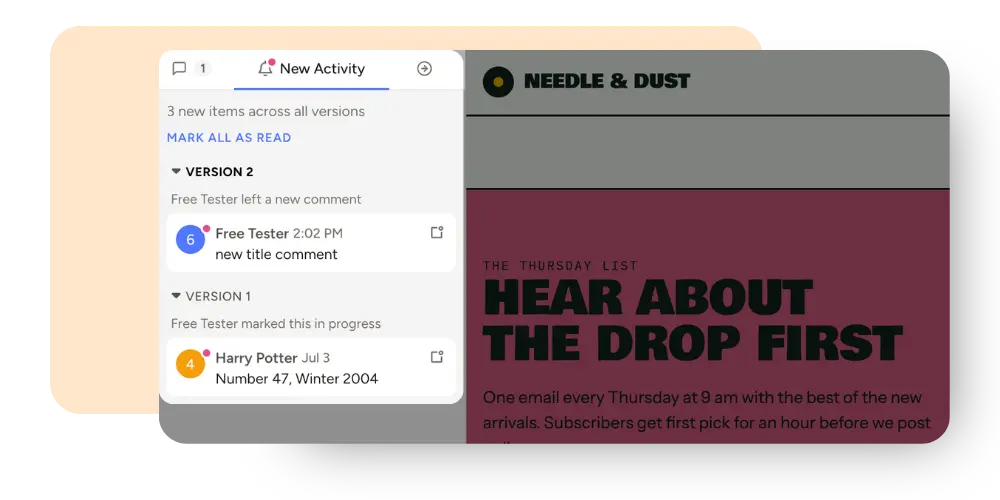
First, the New Activity banner is now a permanent tab in the canvas sidebar. A pink dot shows up whenever there is something you have not seen yet. If you own the canvas, you will find it right next to Comments and the Next Steps tab.
The list also covers every version of your canvas. Each version gets its own section, so you can catch up on a whole round in one place.
Mark comments as read or unread
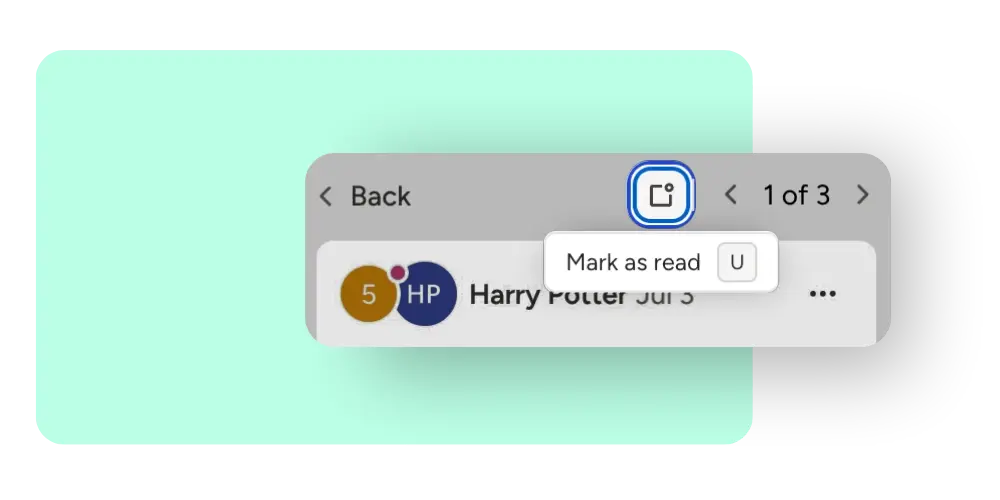
Next, you can mark each item as read or unread with the button beside the comment preview. Read items stay in the list until you refresh, so nothing disappears mid-review.
When you open a comment from New Activity, a button next to the arrows marks it as unread. Even faster, you can just press U on your keyboard. Meanwhile, the arrows only take you through your new activity, not every comment on the canvas. And when you click Back, you land right on the New Activity list again.
Comment history for every annotation
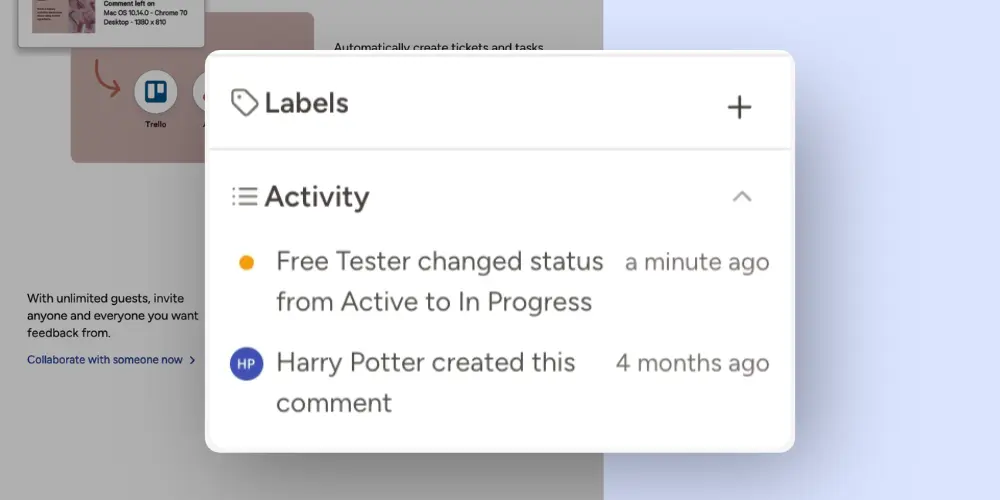
Finally, every comment now has an Activity section under Labels. It shows who changed what and when, like a status moving from Active to In Progress. Keep in mind that history starts from this update, so older changes may not appear.
Bulk actions on the dashboard
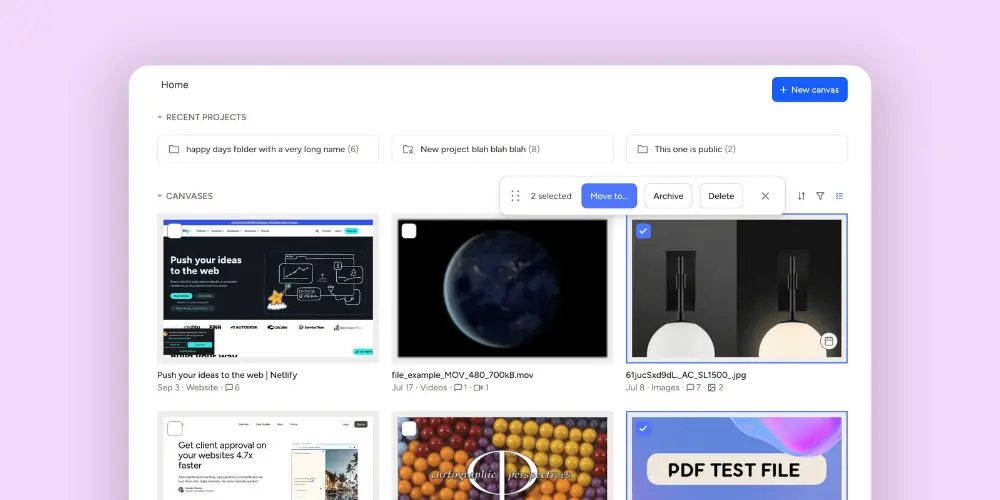
Wrapping up a project and need to clean house? Archiving canvases one by one gets old fast, so we added bulk actions to the dashboard.
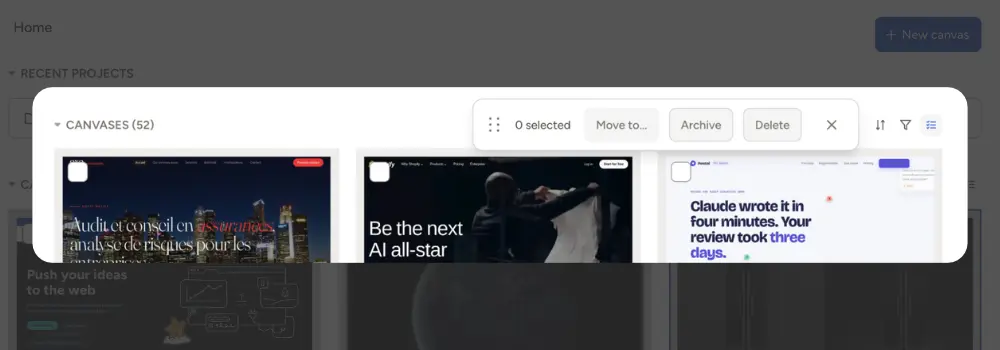
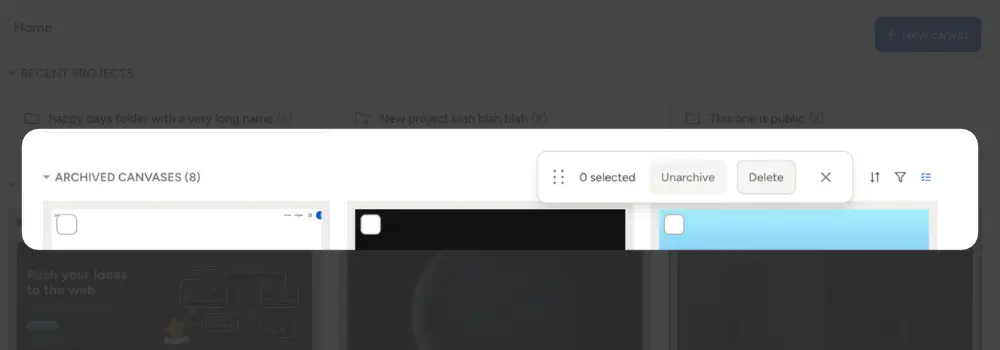
To start, click the multi-select button next to the filter on the Canvases toolbar. Then pick the canvases you want and choose an action from the toolbar:
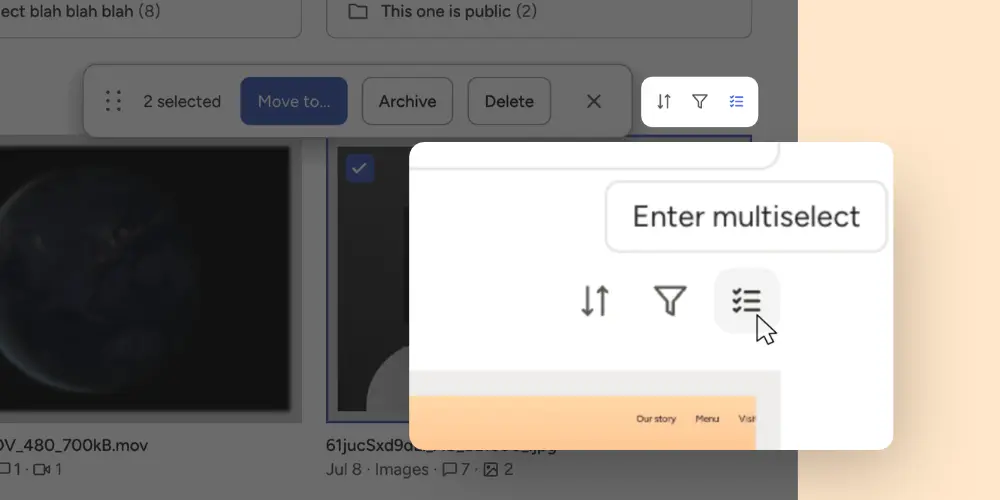
- In Home and Projects: move canvases to another project, archive them, or delete them.
- In Archived Canvases: unarchive or delete them.
This pairs well with Introducing Shareable Projects, since you can reorganize a whole client folder in a few clicks. Learn more about bulk actions.
How the November updates fit your AI agent workflow?
Taken together, these updates cover the full review loop, from the first comment to the final cleanup. Here is what that looks like in practice:
- Your client leaves feedback on a canvas, just like before.
- The New Activity tab shows exactly what came in, across every version.
- Your AI agent fixes it through the MCP server or the CLI.
- For a one-off fix, Copy as Prompt sends a single comment to any agent.
- When the project wraps, bulk actions organize your dashboard in seconds.
Who benefits most from an AI agent workflow?
Three groups feel the biggest difference in their review cycles. Web design agencies juggle several client approvals every week. Freelance designers and developers build, review, and revise on their own. Meanwhile, in-house teams often have marketing leaving comments while developers ship the changes.
The common factor is volume. If you review one page a month, setup may not matter much. However, if revisions pile up across a dozen projects, these updates pay off in a single round. If your reviews still stall before they reach development, read How to optimize your approval workflow and save time.
Try Pastel for AI agent today
Every update in this roundup started as feedback from someone using Pastel. So please keep the notes coming, because we read all of them. If you have any suggestions, please send us an email to valentin.s@usepastel.com.
If you are new to Pastel, you can try everything for free. There are no contracts and no credit card required.
Start your free Pastel trial and see how much of your next review round your AI agent can handle.